If you have been a part of the onboarding process, you might agree that the most important application for getting started is Microsoft Outlook because new users will have to join meetings, accept invites, and activate other 3rd-party accounts. So, let's make sure we are getting ahead of the curve and deploying Microsoft 365 applications so users can log in and get started right away.
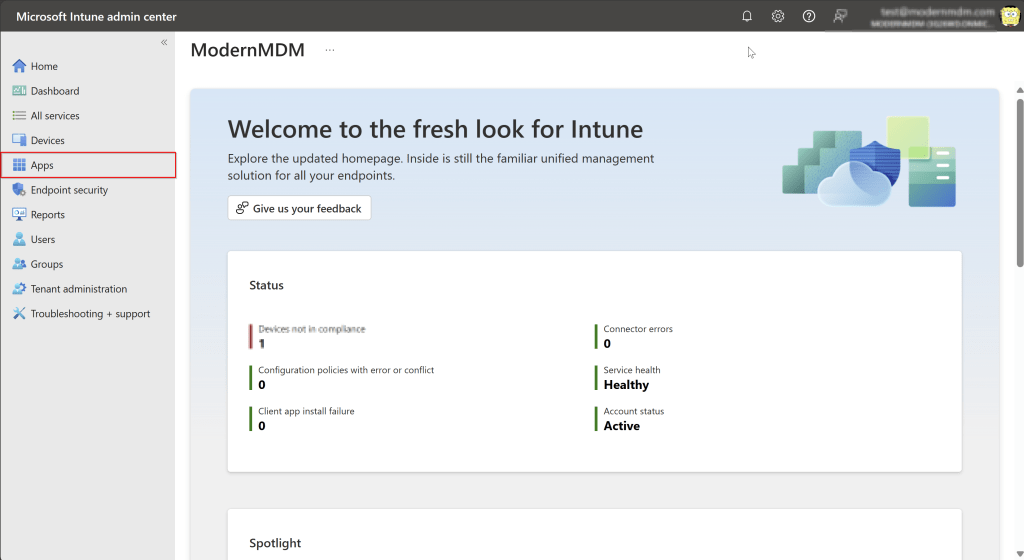
Go to Microsoft Intune > Select Apps
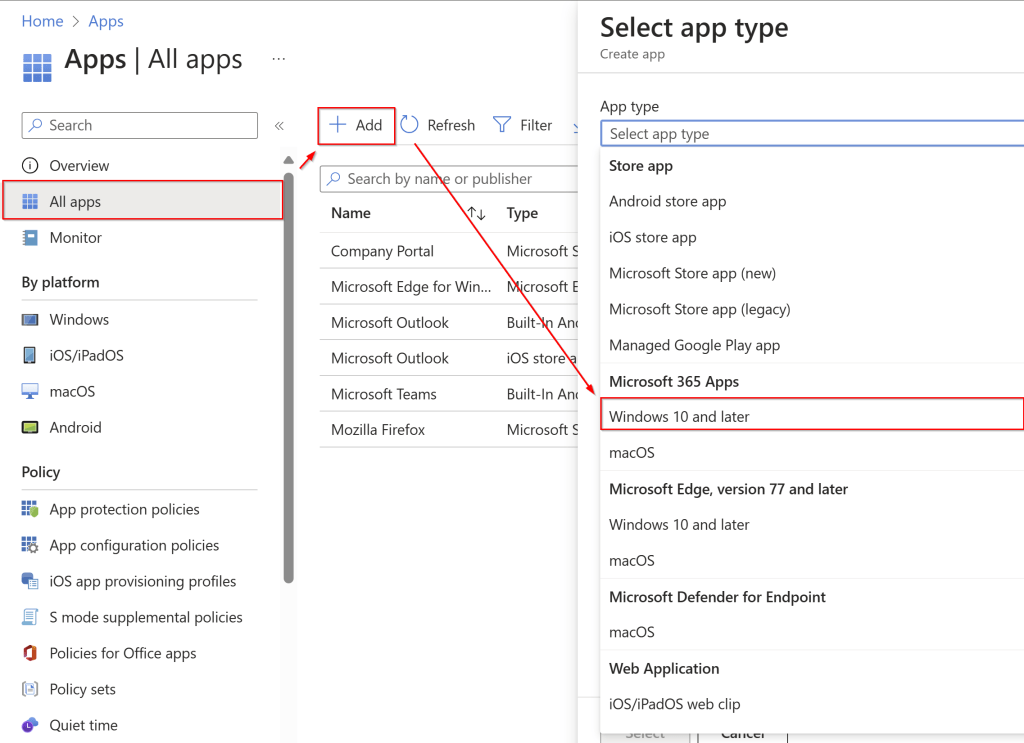
Go to All Apps > + Add > under Microsoft 365 Apps select Windows 10 and later
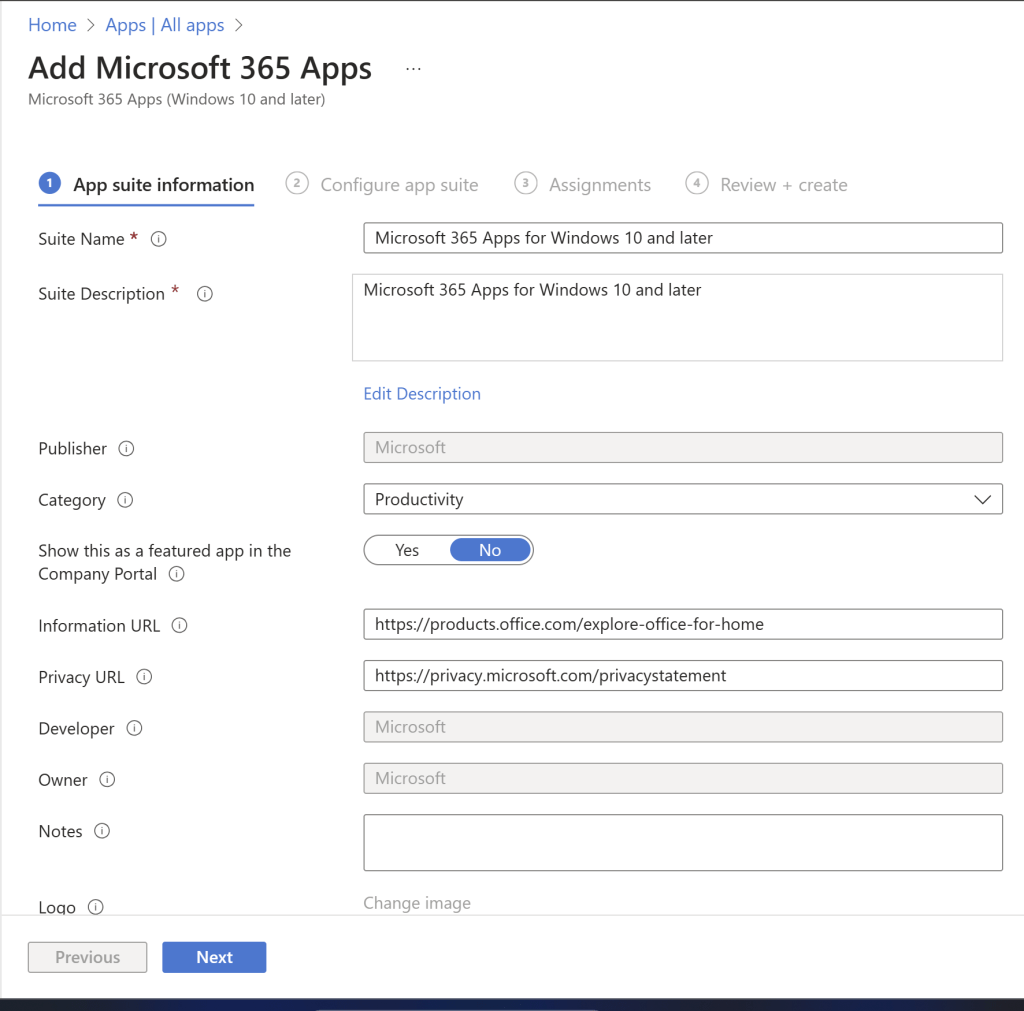
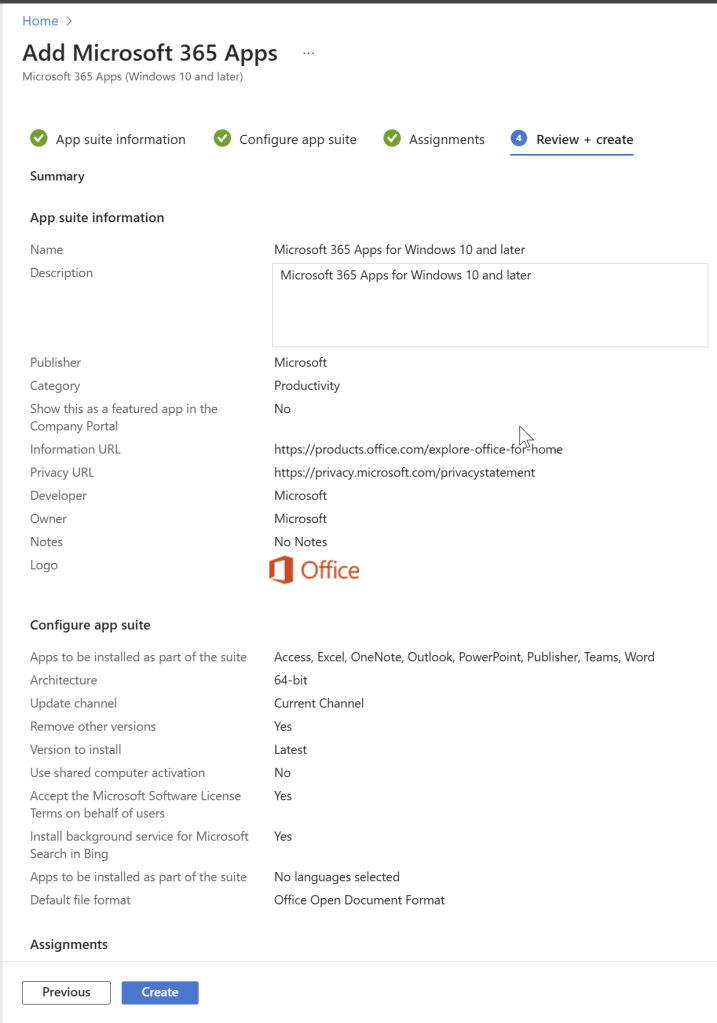
Now on the App suite information you can change the name and description of the application, you can also select to have this app show as featured in the company portal. In my case I will keep the defaults. to move forward click Next
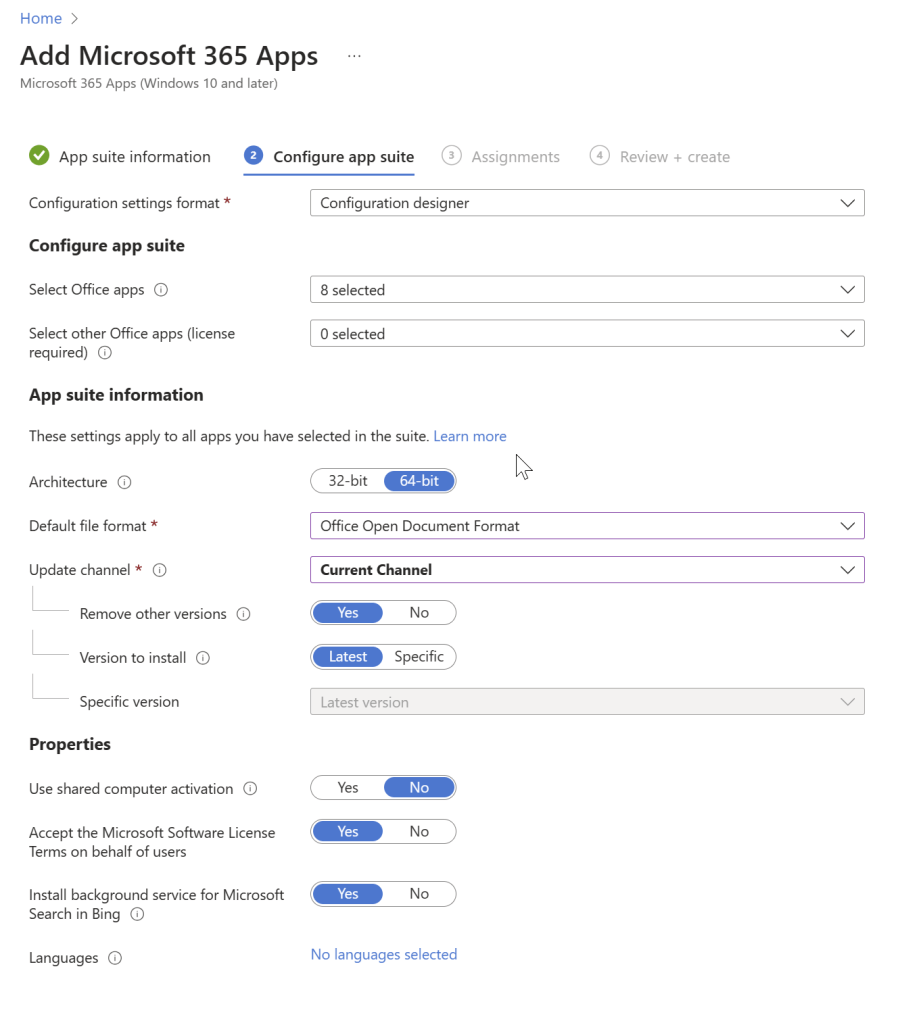
Once in the configure app suite, we can adjust the settings for the Microsoft 365 apps. Under the Configure app suite section, you can select the Office apps you want to deploy as part of the package. By default, the following apps are selected: Access, Excel, OneNote, Outlook, PowerPoint, Publisher, Teams, and Word. Under App suite information you can select the Architecture 32-bit or 64-bit. You will also need to select the Default file format I selected Office Open Document Format followed by the Update channel to select how often the app is updated with new features. Finally in the bottom you’ll see the Properties section where you can accept the Microsoft Software license on behalf of users and also select different languages.
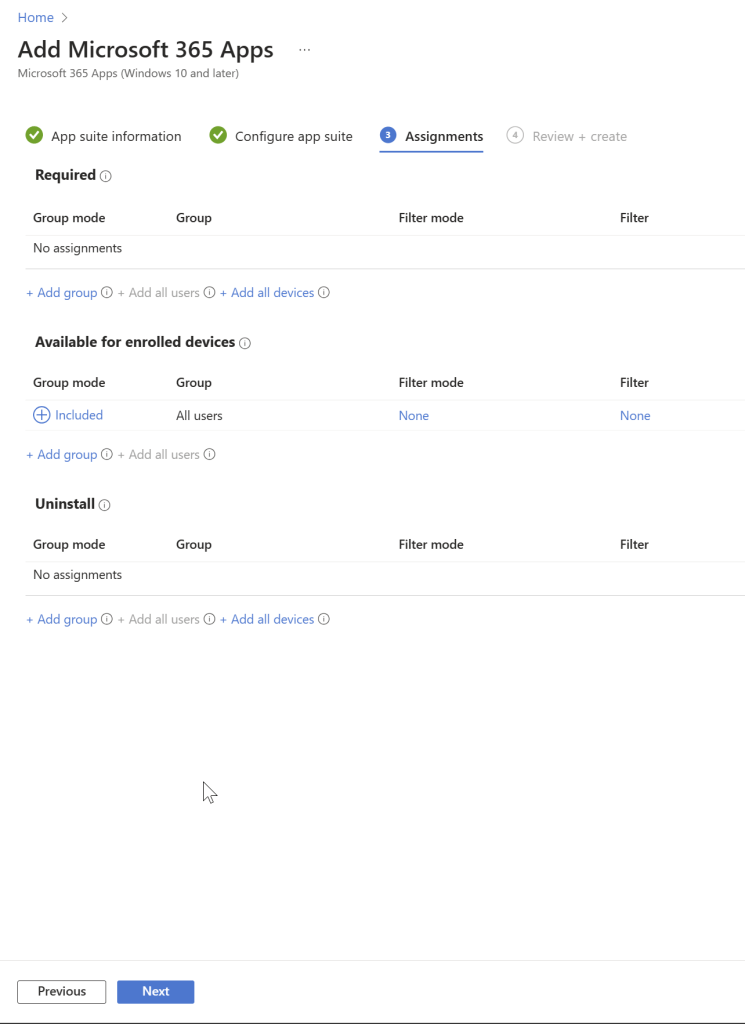
In the Assignments pane we will select who and how the applications are deployed. You have three different options; the first one is Required this method automatically installs the application on enrolled devices, this option is best if you don’t want any user involvement. The next option is Available for enrolled devices, this option displays the application in the Company Portal application, this is ideal if you would like to make this available for users to manually install. The last option is Uninstall, this uninstalls the Microsoft 365 application on enrolled devices if installed via Required or through the Company Portal if set to available. In our case we are going to set this as available for all users for install in the Company Portal.
Review and create your application deployment.
Now that we have set up our application deployment and assignments, let’s test this theory out and check how this looks from an end user’s point of view.
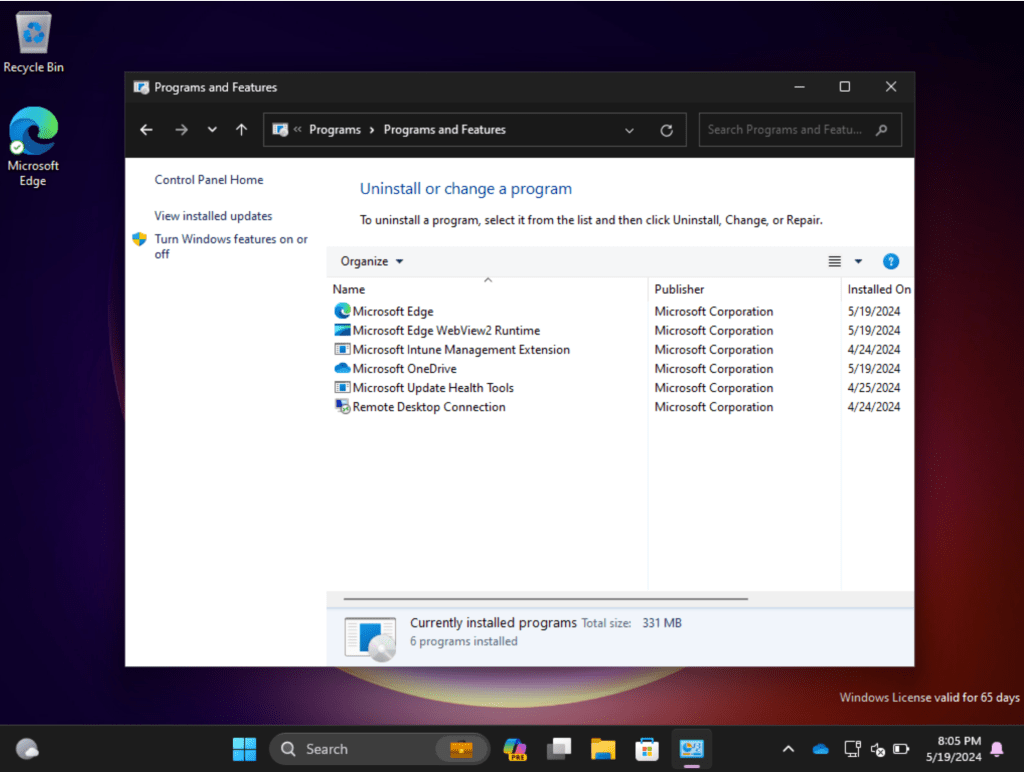
Before Application Install
- App Available in Company Portal
- App Installed and verified in Programs and features
- Outlook installed so user can start checking email etc.
 Home
Home 
Leave a comment