By default, users are allowed to enroll their personal devices into Intune. As an IT admin, you may notice new devices in the devices pane of the Intune admin center that you did not enroll yourself. This may lead to the task of removing the user’s device while investigating how it was enrolled without authorization. To enhance security standards and prevent unauthorized access to company data in the event of user credential leaks, it is advisable to only allow the IT administrator to add devices. This proactive approach can help prevent bad actors from enrolling devices to access sensitive company information.
Scenario: You’re tasked with restricting users from enrolling their personal devices with Microsoft Intune.
Requirements:
Role: Intune administrator
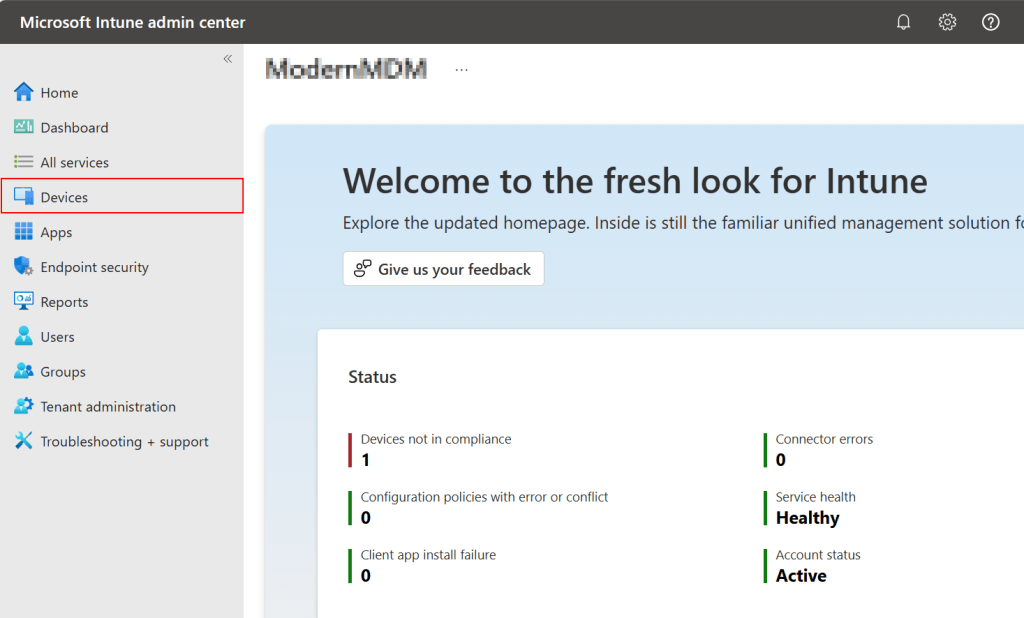
Go to Microsoft Intune Admin Center > Select Devices
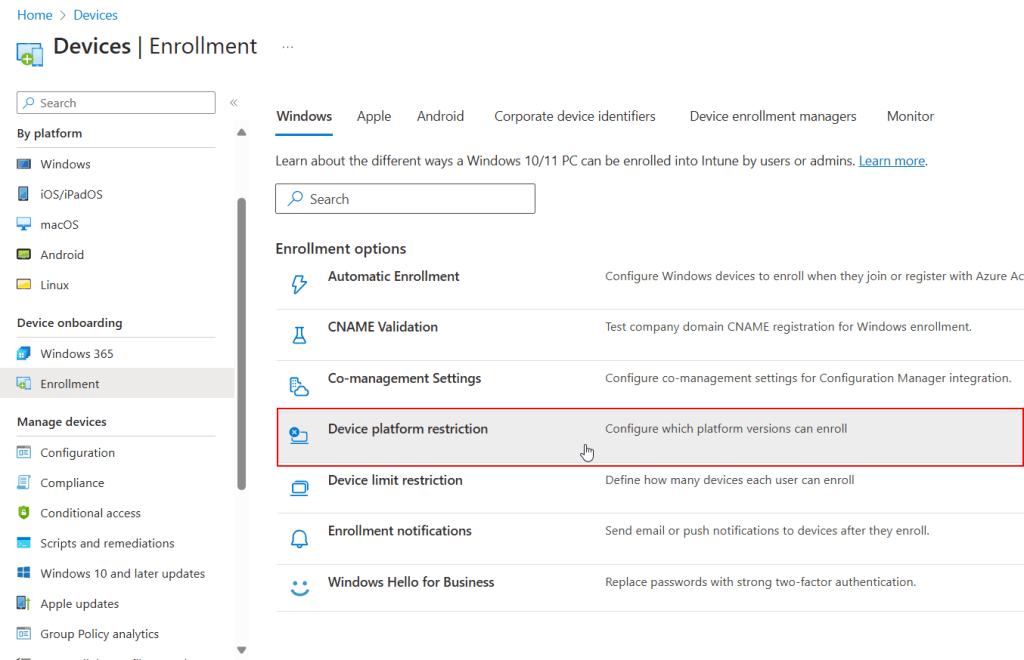
Select Enrollment under Device Onboarding

Under the Enrollment options scroll down and select Device platform restrictions
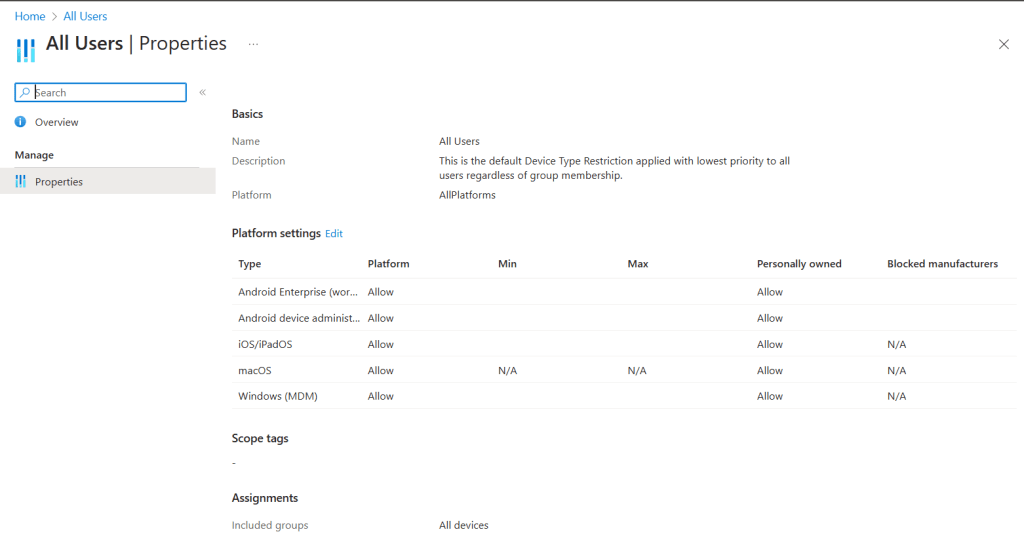
Depending on how you have your restrictions setup under Windows you can see our default target is set to all users, which we can select to check our restriction properties.

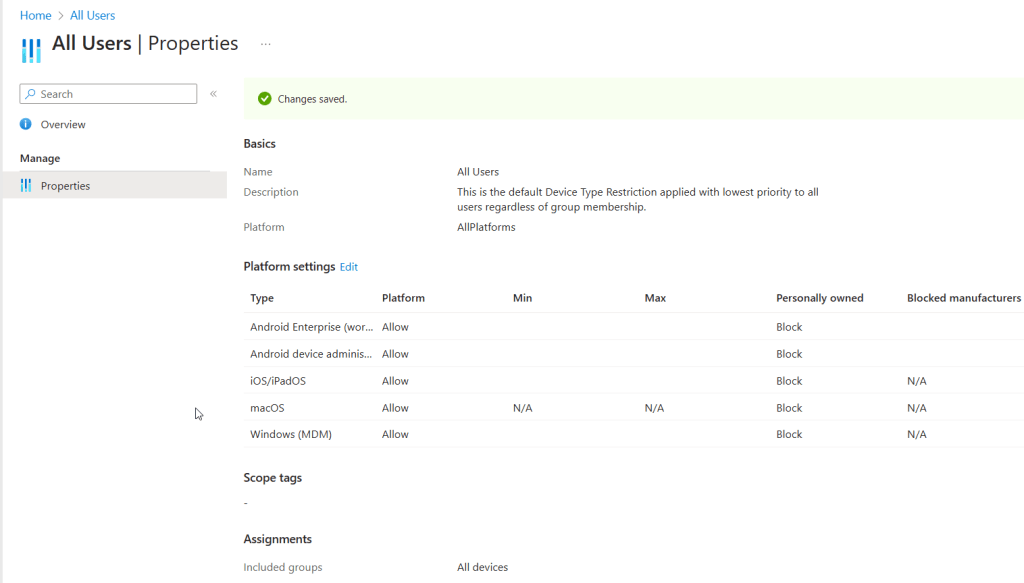
After clicking on All users we > Properties > we can see the platform settings and under Personally owned we can see if they are able to enroll themselves. To restrict all platforms from being able to enroll themselves we are going to click on Edit next to platform settings.
In the platform settings move the radio button under Personally owned to Block. Once we enable those settings, users will not be able to enroll Personally owned devices into Intune. Once complete, Review and save.
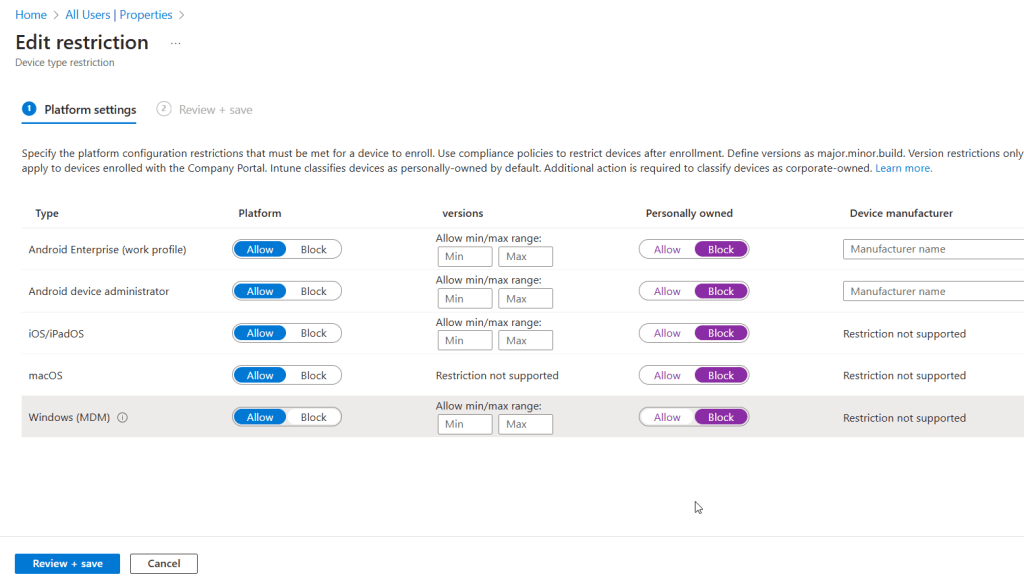
Verify that your settings were changed and look similar to these in the screenshot below
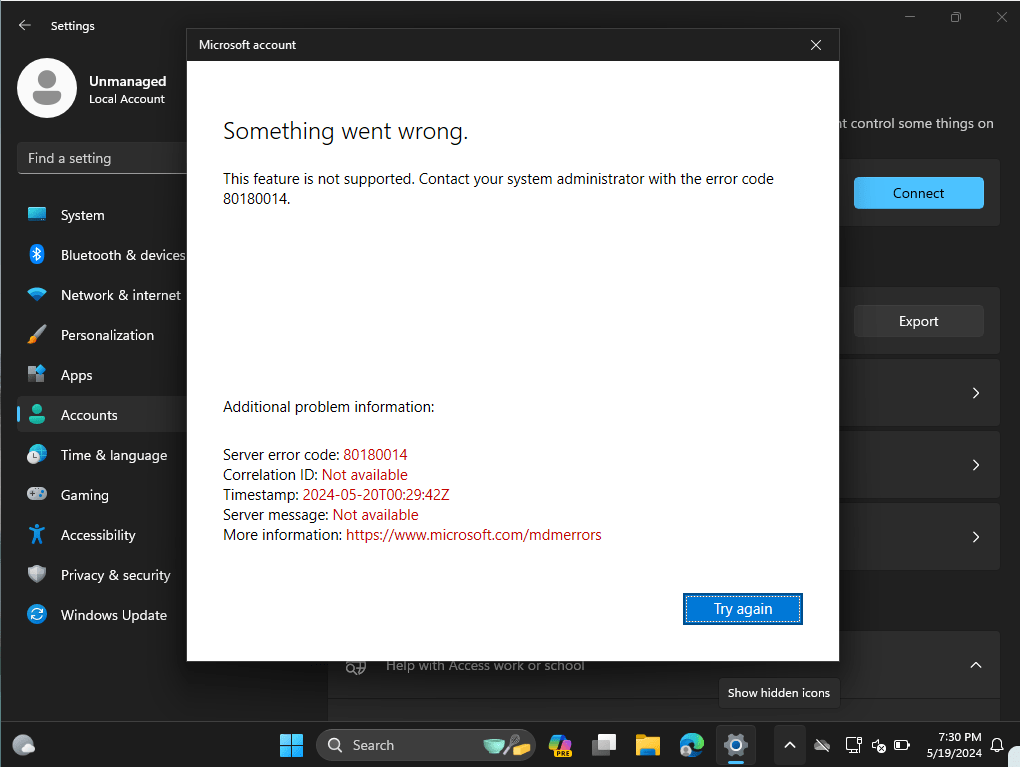
Great, now let’s put this test to work and see what happens when users try to enroll personal devices into our Intune tenant. After trying to enroll the device to Intune, we get the following error message: the Intune enrollment error 80180014 occurs when Windows MDM enrollment is disabled in the device enrollment restriction policy we set in this blog.
 Home
Home 
Leave a comment