What are dynamic groups in Microsoft Entra ID? Dynamic groups allow you to automatically add or remove members based on attributes set for your group. For example, you can create a group based on the attributes of what department a user is in.
Requirements?
Microsoft Entra ID P1 license
Scenario: You are tasked with creating a dynamic group so that all users in the Marketing department are automatically added to a dynamic user group.
Creating Dynamic Groups:
Go to Microsoft Entra ID > Select Groups under Manage section
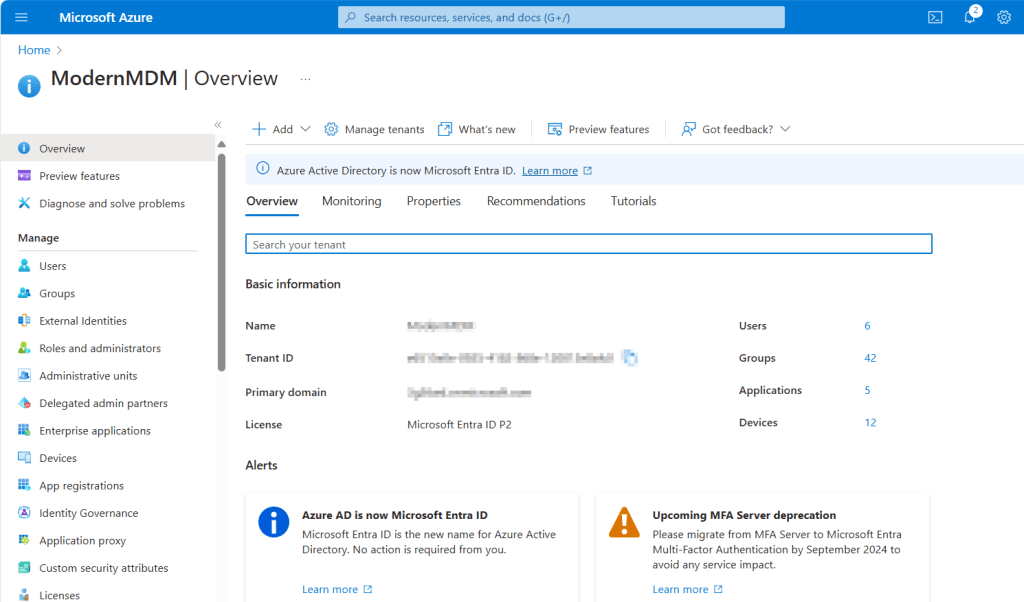
In the Groups page select New group
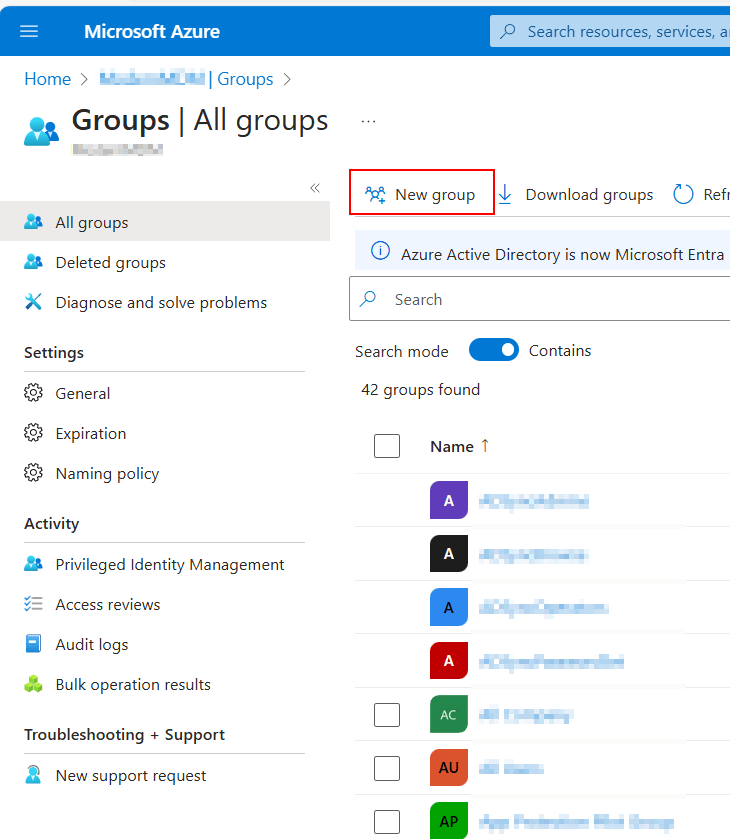
In this section you will set the name, description, and membership type. In this case we want to select Dynamic user. To set rules around this group select add dynamic query.
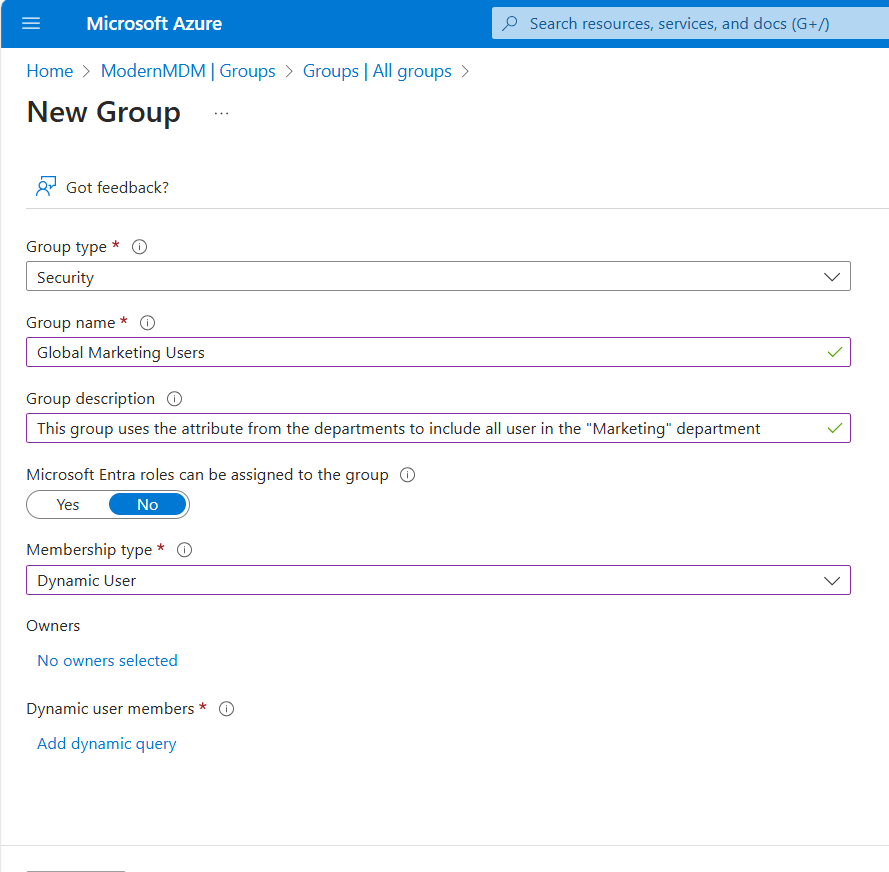
On the Dynamic Membership Rules page, we will create the rules for our membership group. We want to ensure that this group includes all users in the Marketing Department. This can be achieved by selecting department under “Property,” Equals under “Operator,” and typing Marketing for the value.
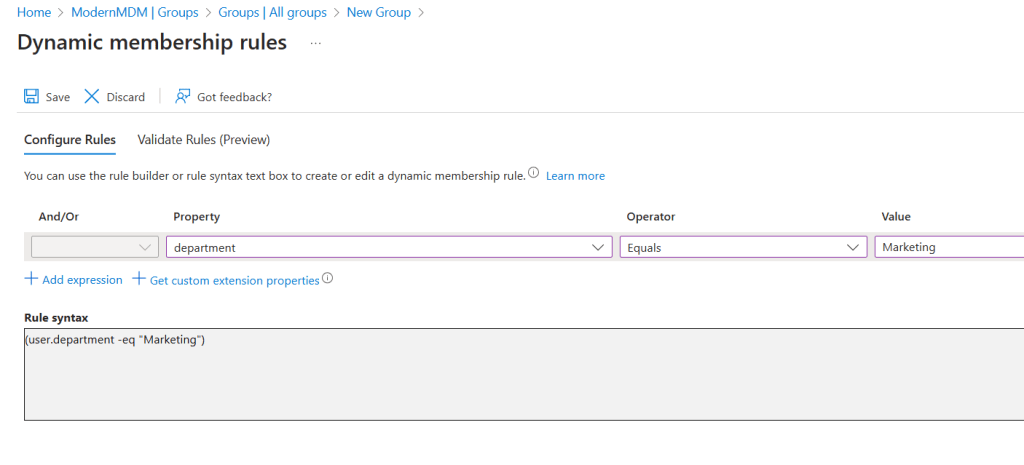
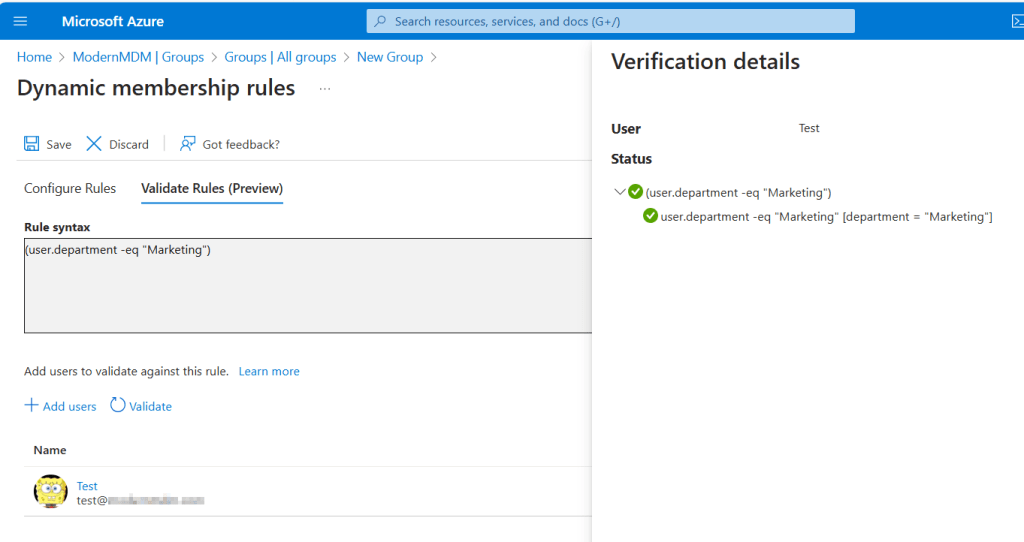
Quick Pause: Let’s test if our user who is in the Marketing department is getting recognized by the rule we set. You can do so by selecting Validate Rules (Preview) where you select a user to test the rule syntax.
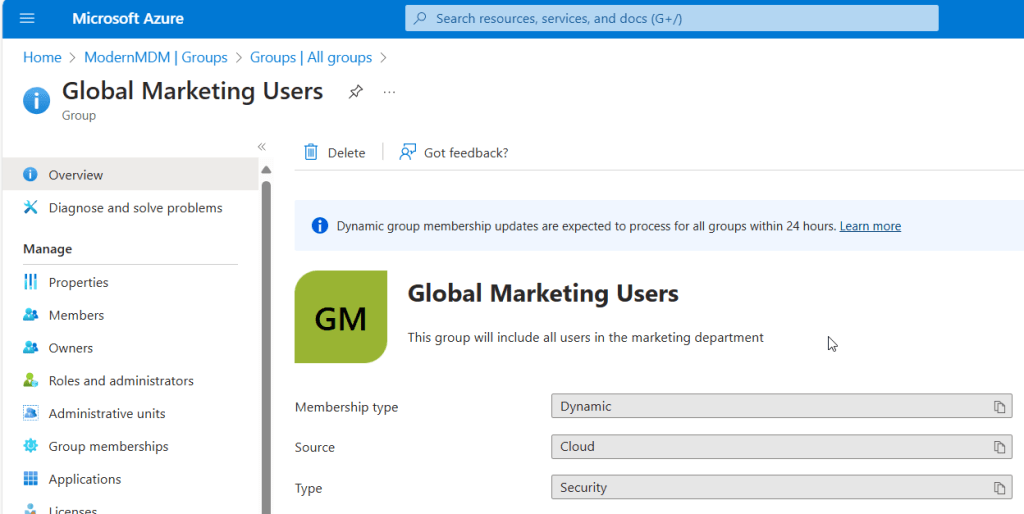
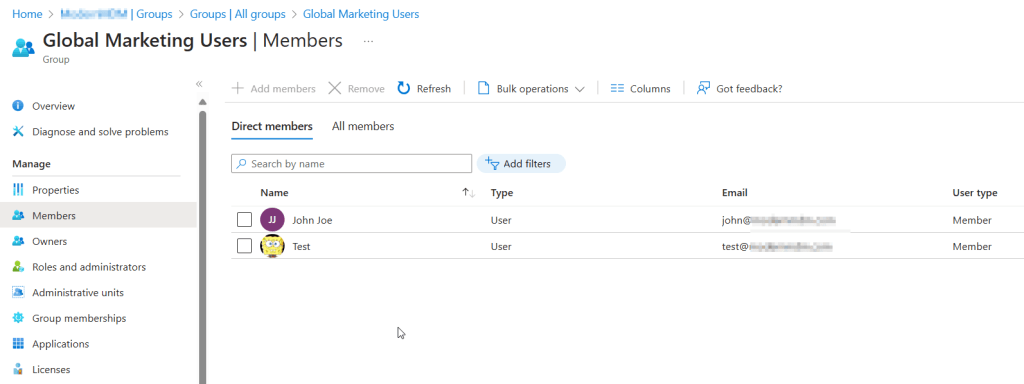
Review and create your group. Navigate to Groups in Microsoft Entra ID and search for Global Marketing Users to verify that all users in the Marketing department are being added by clicking on Members. In the overview section, you will notice that the user group type is Dynamic. In the second picture, you can see all the users in the Marketing department, which are automatically added, eliminating the need to manually add or remove users.
 Home
Home 
Leave a comment